> ## Documentation Index
> Fetch the complete documentation index at: https://rive-update-scripting-docs-890.mintlify.site/llms.txt
> Use this file to discover all available pages before exploring further.
# Loading Assets
> Loading and replacing assets dynamically at runtime
export const YouTube = ({id, timestamp}) => {
const videoSrc = timestamp ? `https://www.youtube.com/embed/${id}?start=${timestamp}` : `https://www.youtube.com/embed/${id}`;
return ;
};
If you want to dynamically replace images, use image data binding.
Some Rive files may contain assets that can be embedded within the actual file binary, such as font, image, or audio files. The Rive runtimes may then load these assets when the Rive file is loaded. While this makes for easy usage of the Rive files/runtimes, there may be opportunities to load these assets in or even replace them at runtime instead of embedding them in the file binary.
There are several benefits to this approach:
* Keep the `.riv` files tiny without potential bloat of larger assets
* Dynamically load an asset for any reason, such as loading an image with a smaller resolution if the `.riv` is running on a mobile device vs. an image of a larger resolution for desktop devices
* Preload assets to have available immediately when displaying your `.riv`
* Use assets already bundled with your application, such as font files
* Sharing the same asset between multiple `.riv`s
## Methods for loading assets
There are currently three different ways to load assets for your Rive files.
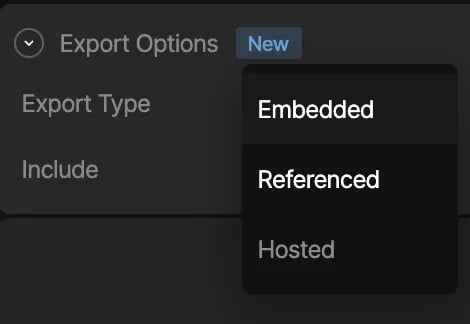
In the Rive editor select the desired asset from the **Assets** tab, and in the inspector choose the desired export option:
### Embedded assets
In the Rive editor, static assets can be included in the `.riv` file, by choosing the *"Embedded"* export type. As stated in the beginning of this page, when the Rive file gets loaded, the runtime will implicitly attempt to load in the assets embedded in the `.riv` as well, and you don't need to concern yourself with loading any assets manually.
**Caveat:** Embedded assets may bulk up the file size, especially when it comes to fonts when using Rive Text ([Text Overview](/editor/text/text-overview)).
**Embedded is the default option.**
### Image CDNs
Some image CDNs allow for on-the-fly image transformations, including resizing, cropping, and automatic format conversion based on the browser's and device's capabilities. These CDNs can host your Rive image assets. Note that for these CDNs, you may need to specify the accepted formats, for example, as part of the HTTP header request:
```html theme={null}
... headers: { Accept: 'image/png,image/webp,image/jpeg,*/*', } ...
```
Please see your CDN provider's documentation for additional information.
Rive supports the following image formats: **jpeg**, **png**, and **webp**
### Referenced assets
In the Rive editor, you can mark an imported asset as a *"Referenced"* export type, which means that when you export the `.riv` file, the asset will not be embedded in the file binary, and the responsibility of loading the asset will be handled by your application at runtime.
This option enables you to dynamically load in assets via a handler API when the runtime begins loading in the `.riv` file. This option is preferable if you have a need to dynamically load in a specific asset based on any kind of app/game logic, and especially if you want to keep the .riv file size small.
All referenced assets, including the `.riv`, will be bundled as a zip file when you export your animation.
**Caveat:** You will need to provide an asset handler API when loading in Rive which should do the work of loading in an asset yourself. See [Handling Assets](#handling-assets).
SVG assets can't currently be loaded at runtime as referenced assets.
This is because SVGs are converted to Rive vector objects, which are always embedded into the .riv.
## Handling assets
This section assumes that you have read through the [Apple](/runtimes/apple/apple) overview.
### Discovering and Loading File Assets
Use `File.getAssets()` to discover a file's assets, then decode and register replacements on its `Worker`. This replaces the legacy `customLoader` callback for out-of-band assets.
A global asset applies to matching assets in that file and other files loaded by the same worker, including files loaded later. Register it using `asset.uniqueName`. You can register assets after creating the file, and register a new asset under the same unique name to replace it.
Each `File.Asset` provides the following metadata:
| Property | Description |
| --------------- | --------------------------------------------------------- |
| `name` | The authored asset name stored in the file. |
| `uniqueName` | The exact name to pass to the worker's global asset APIs. |
| `assetID` | The asset identifier stored in the file. |
| `type` | `.image`, `.font`, `.audio`, or `.unknown(UInt16)`. |
| `fileExtension` | The file extension without a leading period. |
| `cdn` | Optional hosted asset metadata with `baseURL` and `uuid`. |
`getAssets()` includes embedded and referenced assets. Use the metadata to choose which assets your app supplies.
Load the file before querying its asset metadata. Call these APIs from a main-actor async context.
```swift theme={null}
let worker = try await Worker()
let file = try await File(
source: .local("my_rive_file", .main),
worker: worker
)
```
Iterate the file's assets and use their metadata to locate their bytes. This example matches bundled resources using each asset's `uniqueName` and `fileExtension`, skipping unknown asset types and resources that are not bundled.
```swift theme={null}
for asset in try await file.getAssets() {
if case .unknown = asset.type { continue }
guard let url = Bundle.main.url(
forResource: asset.uniqueName,
withExtension: asset.fileExtension
) else { continue }
let data = try await Task.detached {
try Data(contentsOf: url)
}.value
// Decode and register the asset here, as shown below.
}
```
Inside the loop, decode each asset with the worker and register it using `asset.uniqueName`. The worker applies it to files using that unique name.
```swift theme={null}
switch asset.type {
case .image:
let image = try await worker.decodeImage(from: data)
worker.addGlobalImageAsset(image, name: asset.uniqueName)
case .font:
let font = try await worker.decodeFont(from: data)
worker.addGlobalFontAsset(font, name: asset.uniqueName)
case .audio:
let audio = try await worker.decodeAudio(from: data)
worker.addGlobalAudioAsset(audio, name: asset.uniqueName)
case .unknown:
break
}
```
#### Complete Example
This example loads bundled resources whose filenames match each asset's `uniqueName` plus its `fileExtension` (for example, `picture-47982.jpeg`). It skips assets without a matching bundled resource and leaves them unchanged.
```swift theme={null}
@MainActor
func loadFileWithAssets() async throws -> File {
let worker = try await Worker()
let file = try await File(
source: .local("my_rive_file", .main),
worker: worker
)
for asset in try await file.getAssets() {
if case .unknown = asset.type { continue }
guard let url = Bundle.main.url(
forResource: asset.uniqueName,
withExtension: asset.fileExtension
) else { continue }
let data = try await Task.detached {
try Data(contentsOf: url)
}.value
switch asset.type {
case .image:
let image = try await worker.decodeImage(from: data)
worker.addGlobalImageAsset(image, name: asset.uniqueName)
case .font:
let font = try await worker.decodeFont(from: data)
worker.addGlobalFontAsset(font, name: asset.uniqueName)
case .audio:
let audio = try await worker.decodeAudio(from: data)
worker.addGlobalAudioAsset(audio, name: asset.uniqueName)
case .unknown:
break
}
}
return file
}
```
Create your `Rive` and view from the returned file. You can also register replacements after displaying a file. Using the same unique name updates matching assets across files on that worker; use separate workers when those files need different replacements.
### Loading Hosted Assets
The new runtime does not automatically fetch hosted assets. For an asset with `cdn` metadata, fetch its bytes from `baseURL` with `uuid` appended as a path component, then decode and register it using the same global asset APIs.
For example, inside an asset loop, load hosted images with:
```swift theme={null}
guard asset.type == .image,
let cdn = asset.cdn,
let baseURL = URL(string: cdn.baseURL)
else { continue }
let url = baseURL.appendingPathComponent(cdn.uuid)
let (data, response) = try await URLSession.shared.data(from: url)
guard let response = response as? HTTPURLResponse,
(200..<300).contains(response.statusCode)
else { throw URLError(.badServerResponse) }
let image = try await worker.decodeImage(from: data)
worker.addGlobalImageAsset(image, name: asset.uniqueName)
```
### Managing Global Assets
The worker retains registered assets, so you do not need to keep a separate strong reference while they are registered. To remove a registration, use the corresponding API with the same unique name:
```swift theme={null}
worker.removeGlobalImageAsset(name: imageAsset.uniqueName)
worker.removeGlobalFontAsset(fontAsset.uniqueName)
worker.removeGlobalAudioAsset(name: audioAsset.uniqueName)
```
### Examples
* [(SwiftUI) Swap out images and fonts](https://github.com/rive-app/rive-ios/blob/main/Example-iOS/Source/Examples/SwiftUI/SwiftSimpleAssets.swift)
* [(UIKit) Swap and cache images and fonts](https://github.com/rive-app/rive-ios/blob/main/Example-iOS/Source/Examples/Storyboard/CachedAssets.swift)
### Using the Asset Handler API
When instantiating a `RiveViewModel` (or `RiveFile` directly), add a `customLoader` callback property to the list of parameters. This callback will be called for every asset the runtime detects from the `.riv` file on load, and the callback will be responsible for either handling the load of an asset at runtime or passing on the responsibility and giving the runtime a chance to load it otherwise.
An instance where you may want to handle loading an asset is if an asset in the file is marked as **Referenced**, and you need to provide an actual asset to render for the graphic, as Rive does not embed it in the `.riv` and thus cannot load it.
An instance where you may want to give the runtime a chance to load the asset is if the asset in the file is marked as **Hosted**, and want to pass the responsibility of loading it to the runtime (which will call into a Rive CDN to do so).
```swift theme={null}
RiveViewModel(fileName: "simple_assets", loadCdn: false, customLoader: { (asset: RiveFileAsset, data: Data, factory: RiveFactory) -> Bool in
// A simple check for a Rive file with one asset
if (asset is RiveImageAsset){
// picture-47982.jpeg can be exported with the .riv file from the Rive editor.
// It is then included in the main bundle resources of the project
guard let url = (.main as Bundle).url(forResource: "picture-47982", withExtension: "jpeg") else {
fatalError("Failed to locate 'picture-47982' in bundle.")
}
guard let data = try? Data(contentsOf: url) else {
fatalError("Failed to load \(url) from bundle.")
}
(asset as! RiveImageAsset).renderImage(
factory.decodeImage(data)
)
return true;
}
return false;
}).view()
```
Your provided callback will be passed an `asset`, `data`, and a `factory`.
* `asset` - Reference to a `RiveFileAsset` object. You'll use this reference to set a new Rive-specific asset for dynamically loaded content. If you wish to dynamically swap a given image/font over the lifetime of your view, you may want to cache this object. You can grab a number of properties from this object, such as:
* `name()` - Name of the asset without the unique file identifier appended, (i.e. `picture.webp` instead of `picture-47982.webp`)
* `uniqueFilename()` - Name of the asset with the unique file identifier, (i.e. `picture-47982.webp` instead of `picture.webp`)
* `fileExtension()` - Name of the file extension (i.e. `"png"`)
* `cdnBaseUrl()` - Name of the base URL for the CDN
* `cdnUuid()` - Identifier for the resource in the Rive CDN. Useful to see if this has length so you can see if the asset is marked for grabbing from a Rive CDN (in which case, you can let the Rive runtime retrieve the asset, rather than your app logic)
* `data` - Array of bytes for the asset. This is useful to determine if the asset is already embedded in the Rive file (aka, not marked as "referenced" in the editor)
* `factory` - Utility with methods to transform an asset's bytes into a `RiveRenderImage` ,`RiveFont`, or `RiveAudio` which the `asset` object uses to render via `.renderImage(your-rive-render-image)` , `.font(your-rive-font)` , or `.audio(your-rive-audio)` . These assets are created by calling `factory.decodeImage(data)`, `factory.decodeFont(data)`, or `factory.decodeAudio(data)`
**Important**: Note that the return value of the callback is a `boolean`, which is where you need to return:
* `true` if you intend on handling and loading in an asset yourself, or
* `false` if you do not want to handle asset loading for that given asset yourself, and attempt to have the runtime try to load the asset.
**Example Usage**
```swift theme={null}
import SwiftUI
import RiveRuntime
struct SimpleAssetReplacement: View {
@StateObject private var riveInstance = RiveViewModel(fileName: "simple_assets", autoPlay: false, loadCdn: false, customLoader: { (asset: RiveFileAsset, data: Data, factory: RiveFactory) -> Bool in
if (asset is RiveImageAsset) {
guard let url = (.main as Bundle).url(forResource: "picture-47982", withExtension: "jpeg") else {
fatalError("Failed to locate 'picture-47982' in bundle.")
}
guard let data = try? Data(contentsOf: url) else {
fatalError("Failed to load \(url) from bundle.")
}
(asset as! RiveImageAsset).renderImage(
factory.decodeImage(data)
)
return true;
} else if (asset is RiveFontAsset) {
guard let url = (.main as Bundle).url(forResource: "Inter-45562", withExtension: "ttf") else {
fatalError("Failed to locate 'Inter-45562' in bundle.")
}
guard let data = try? Data(contentsOf: url) else {
fatalError("Failed to load \(url) from bundle.")
}
(asset as! RiveFontAsset).font(
factory.decodeFont(data)
)
return true;
}
return false;
})
var body: some View {
riveInstance.view()
}
}
```
### Fonts
When using a custom loader, referenced fonts can be loaded one of two ways: with raw data (from a file, as seen above), or with a `UIFont` / `NSFont`.\
When using `UIFont` / `NSFont`, size, weight, and width of the supplied font is ignored. The font will be used as defined in the text run, rather than being overridden by the supplied font's styling.
```swift theme={null}
import SwiftUI
import RiveRuntime
struct SimpleFontReplacement: View {
@StateObject private var riveInstance = RiveViewModel(fileName: "simple_assets", autoPlay: false, loadCdn: false, customLoader: { (asset: RiveFileAsset, data: Data, factory: RiveFactory) -> Bool in
if (asset is RiveFontAsset) {
(asset as! RiveFontAsset).font(
factory.decodeFont(UIFont.systemFont(ofSize: 12))
)
return true;
}
return false;
})
var body: some View {
riveInstance.view()
}
}
```
### Images
When loading assets for referenced images, you may need to scale local assets to the size of an image asset as defined in your Rive file. When using a custom loader, you can access the size of the referenced image via the `size` property of a `RiveImageAsset`.
```swift theme={null}
import SwiftUI
import RiveRuntime
struct SimpleImageSizeReplacement: View {
@StateObject private var riveInstance = RiveViewModel(fileName: "simple_assets", autoPlay: false, loadCdn: false, customLoader: { (asset: RiveFileAsset, data: Data, factory: RiveFactory) -> Bool in
guard let imageAsset = asset as? RiveImageAsset else { return false }
let requestedSize = imageAsset.size
let image = UIImage(...)
let resizedImage = resize(image, to: requestedSize)
guard let pngData = resizedImage.pngData() else { return false }
imageAsset.renderImage(
factory.decodeImage(pngData)
)
return true
}
return false;
}
var body: some View {
riveInstance.view()
}
```
## Additional resources
 ### Embedded assets
In the Rive editor, static assets can be included in the `.riv` file, by choosing the *"Embedded"* export type. As stated in the beginning of this page, when the Rive file gets loaded, the runtime will implicitly attempt to load in the assets embedded in the `.riv` as well, and you don't need to concern yourself with loading any assets manually.
**Caveat:** Embedded assets may bulk up the file size, especially when it comes to fonts when using Rive Text ([Text Overview](/editor/text/text-overview)).
### Embedded assets
In the Rive editor, static assets can be included in the `.riv` file, by choosing the *"Embedded"* export type. As stated in the beginning of this page, when the Rive file gets loaded, the runtime will implicitly attempt to load in the assets embedded in the `.riv` as well, and you don't need to concern yourself with loading any assets manually.
**Caveat:** Embedded assets may bulk up the file size, especially when it comes to fonts when using Rive Text ([Text Overview](/editor/text/text-overview)).